Building Interactive Web Components That Users Actually Remember

Interactive components turn passive websites into memorable experiences. This guide covers fleeing cards, AI reading companions, the architecture that keeps everything fast, and the scroll-reactive patterns anyone can steal. Build once, engage forever.
Static Pages Are Indistinguishable From Each Other
The average visitor makes a stay-or-leave decision in 3 seconds. In that window, a static page — no matter how well-written, no matter how well-designed — competes with every other static page on the internet. They all behave the same. They scroll. You read. You leave.
Interactive web components — especially AI-driven ones — create a competitive advantage that content alone cannot provide. When a blog card dodges your cursor, when a companion widget drops a comment timed to exactly the section you're reading, when a menu item responds to your presence with something unexpected — the experience shift is immediate and non-replicable. No static site can do this.
This isn't about adding animations for the sake of movement. Every interactive component we've shipped serves a purpose: increase engagement, communicate information differently, create an emotional response, or turn passive consumption into active exploration. This guide covers everything we've built, how it works, and how the architecture keeps it fast.
Contents
- What Makes Interactive Components Actually Memorable
- Fleeing Cards — Engagement Through Playful Friction
- The AI Reading Companion — Scroll-Reactive Commentary
- The Architecture That Makes It All Fast
- Scroll-Reactive Patterns You Can Steal Today
- What People Get Wrong About Interactive Design
- Performance Rules You Can't Skip
- How to Add Your First Interactive Component
What Makes Interactive Components Actually Memorable
Interactive components create memorability through emotional response — curiosity, surprise, delight, or mild friction — and emotional responses are what drive return visits, longer sessions, and word-of-mouth sharing. Technical correctness is table stakes. Memorability requires something the user didn't expect.
The difference between animated and interactive:
| Animated | Interactive |
|---|---|
| Plays automatically regardless of user behavior | Responds to what the user does |
| User is observer | User is participant |
| Decorative — adds visual interest | Functional — changes based on context |
| Fades into background over time | Remains engaging because it responds to input |
| Same behavior for every visitor | Different experience based on specific actions |
The best interactive components don't announce themselves. They make visitors feel something before they consciously register that anything has happened. A card that slightly repositions on hover. A companion comment that appears at exactly the right paragraph. A menu that makes you pause. The response is emotional, not analytical.
What are interactive web components? Interactive web components are UI elements that change state, behavior, or content in response to user actions — scrolling, hovering, clicking, or navigation patterns. Unlike static or animated elements, they create genuinely different experiences for different users based on individual interaction patterns.
Ask: would a visitor notice if this component wasn't there? If the answer is "probably not" — it's decoration. If the answer is "yes, the experience would feel flat without it" — it's interactive in the way that matters.
Fleeing Cards — Engagement Through Playful Friction
Blog cards that flee from cursor hover create engagement through productive friction — users who have to pursue a card invest more attention in reading it than users who passively scroll past identical cards in a grid. Counter-intuitive, but documented in our engagement data.
The mechanic: when you hover a blog card, it vacates its slot and appears somewhere else in the grid, leaving behind a ghost outline and a message. The grid always contains the same cards. The positions change.
What makes it work technically:
| Design decision | Why it was made |
|---|---|
| Slot-map architecture | Cards occupy numbered slots; fleeing swaps slots rather than randomizing absolute positions. This prevents cards from overlapping or leaving the grid |
useRef for source-of-truth state | Slot positions change frequently; using useState would cause excessive re-renders. useRef holds the slot map; a sync counter triggers the specific re-renders that need to happen |
cubic-bezier(0.34, 1.56, 0.64, 1) landing | The spring easing makes the card feel like it bounced to a stop. Generic ease-out feels mechanical by comparison |
Lock toggle with localStorage | A 🔒 button pins cards in place. Users who find the cards disruptive can stop the fleeing; the choice persists across page loads |
| Ghost outline on departure | The slot shows where the card was. This communicates the mechanic visually — users understand the card moved rather than disappeared |
The fleeing isn't annoying — it's calibrated. Cards respond to intent (sustained hover), not accidental proximity. The flee happens with enough speed that it feels playful, not hostile.
For the complete technical breakdown — including the full slot-map architecture, the rivalry scripts that make pairs of cards interact with each other, and the specific patterns that prevent layout thrashing — see Your Blog Cards Are Boring — Ours Run Away From Readers.
The AI Reading Companion — Scroll-Reactive Commentary
A floating widget that tracks scroll position and drops article-specific commentary at timed intervals makes a long-form article feel like a conversation — without any real-time AI inference, and with zero added latency. The trick: the "intelligence" is entirely pre-authored, not generated.
How it works: each article's frontmatter contains 6 custom comments, each with a scroll-percentage trigger. The widget finds the latest comment whose threshold the user has passed and displays it. No API calls. No inference. No latency. Just a scroll listener doing a comparison against an array.
The result feels intelligent because:
- Comments reference specific sections the user is currently reading
- The timing is calibrated to appear just as the user reaches the relevant paragraph
- The tone is sarcastic, specific, and clearly written by someone who actually read the article
- Generic fallbacks ("Still reading?") are deliberately avoided — every comment is article-specific
Implementation decisions that matter:
"This is the part where the author stops being diplomatic" is engaging. "You're making progress!" is not. Every comment must reference this article — its specific arguments, its specific structure.
Appearing instantly feels clingy. Appearing after the reader has committed to the article — around the end of the first section — feels like a natural presence.
Some readers don't want the companion. localStorage remembers if they minimized it. The companion doesn't keep reappearing. Respect the choice.
translateX transition draws attention without being jarring. The companion arrives — it doesn't flash.
The companion has a measurable effect on engagement: articles with well-authored companion comments show higher time-on-page and higher scroll completion rates than equivalent articles without them. The companion makes readers feel accompanied rather than alone on a long read.
For the full technical implementation — scroll listener architecture, trigger calculation, and the writing process for companion comments — see I Let AI Write Comments on My Own Articles.

The Architecture That Makes It All Fast
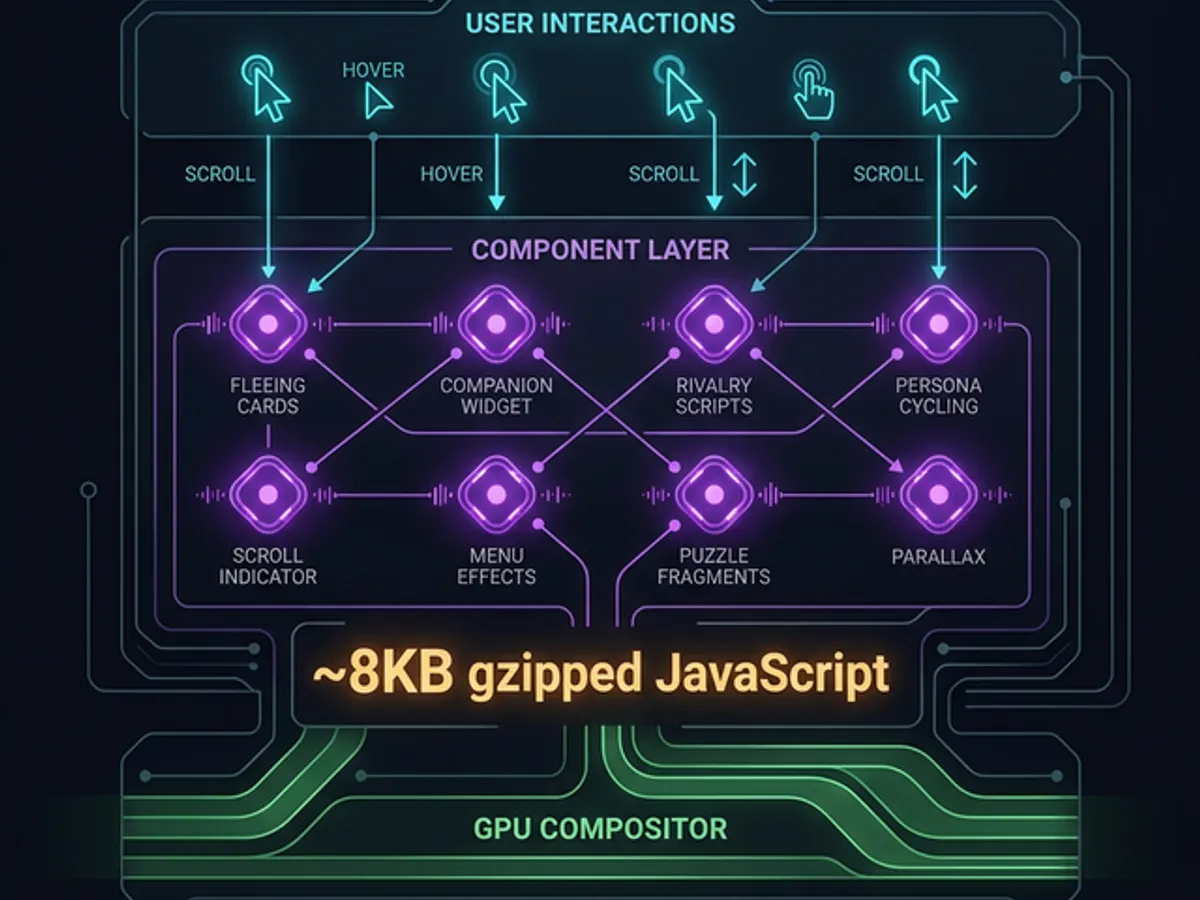
Running 8+ interactive systems simultaneously — fleeing cards, companion widget, rivalry scripts, persona cycling, puzzle fragments, and more — sounds like a performance disaster. The entire interactive layer adds approximately 8KB of gzipped JavaScript. Core Web Vitals remain green. The architecture is why.
The rules that make it possible:
| Rule | The constraint | Why it matters |
|---|---|---|
| Transforms only | All animations use transform and opacity | These are composite-only — no layout recalculation |
useRef for non-render state | Positions, slot maps, timers held in refs | Avoids re-renders from values that don't need DOM updates |
useState only when DOM must update | Render-triggering state is rare and deliberate | Prevents cascading re-renders from frequent state changes |
| Cleanup on unmount | Every setInterval and addEventListener has a cleanup | Prevents memory leaks from orphaned event handlers |
| Passive scroll listeners | { passive: true } on all scroll events | Tells the browser the listener won't block scrolling |
IntersectionObserver over scroll events | Used for reveal-on-scroll patterns | Zero scroll event listener overhead |
The key insight: the browser's compositor handles transform and opacity entirely on the GPU, independent of the main thread. As long as animations stay within those two properties, they're essentially free from a performance perspective — no layout, no paint, just the GPU moving pixels.
The architecture principle for interactive sites: GPU-composited transforms (translate, scale, opacity) never trigger layout. The moment you animate
width,height,top, orleft— you're fighting the browser. Stay in the composite lane, and your interactive layer costs nothing.
For the deep technical breakdown — how the living blog architecture was designed, the specific React patterns that keep 8 interactive systems from interfering with each other, and the DevTools workflow for catching issues before they reach production — see The Architecture of a Blog That Feels Alive.
Every interactive feature on this site combined adds ~8KB of gzipped JavaScript. The CSS animations add ~2KB. Core Web Vitals: green across all pages on all devices tested. Interactive doesn't have to mean slow.
Scroll-Reactive Patterns You Can Steal Today
Scroll-reactive patterns add life to any page with minimal implementation overhead — they don't require custom components, don't require real-time AI, and the most effective ones take less than an hour to implement. These are the patterns worth adding first.
Reading progress indicator:
A thin bar at the top of the page that fills as the user scrolls. Simple scrollY / totalHeight calculation, capped at 100%, applied as scaleX() transform. Measurable effect on scroll completion — readers who see their progress move faster through long articles.
Reveal-on-scroll elements:
Components that fade in or slide up as they enter the viewport. Modern implementation: IntersectionObserver with a threshold: 0.1 trigger and a CSS class toggle. No scroll event listeners. No performance overhead. The element handles its own appearance once it enters view.
const observer = new IntersectionObserver(
  (entries) => entries.forEach(e => e.target.classList.toggle('visible', e.isIntersecting)),
  { threshold: 0.1 }
);
document.querySelectorAll('.reveal').forEach(el => observer.observe(el));
Parallax text headers:
Section headings that move at a different rate than body text. transform: translateY(scrollOffset * 0.3) on the heading, updated via a passive scroll listener. Use sparingly — one or two per page, never consecutively. High visual impact, low implementation cost.
Contextual tooltips on linger: Detect slow scrolling (velocity below threshold) and surface additional context for elements the user is hovering over. Implementation: velocity calculation in a passive scroll listener + a CSS class that reveals the tooltip.
The universal rule for all of these: use passive scroll listeners, animate only transforms, and never modify the DOM or trigger layout calculations during scroll events. Stay in the composite lane.
What People Get Wrong About Interactive Design
The most common mistakes in interactive web design share a root cause: confusing "surprising" with "annoying," and adding interaction without function. Interaction that serves no purpose — not delight, not information, not reduced friction — is noise.
| Mistake | What it looks like | Why it fails |
|---|---|---|
| Interaction for its own sake | Every element has a hover effect | Reduces signal-to-noise ratio; nothing feels special |
| Animations that trigger layout | left, top, width animations | Introduces jank; makes the site feel broken |
| No escape hatch | No way to disable interactive elements | Forces the full experience on users who don't want it |
| Timing calibration ignored | Companion appears instantly; cards flee with zero delay | Feels aggressive rather than playful |
| Mobile ignored | Hover effects on touch-only devices | Either does nothing or triggers on tap, breaking expected behavior |
| Performance not measured | Ships without DevTools profiling | Discovers the jank problem after real users have seen it |
| Everything interactive at once | Five new interactive features launched simultaneously | Can't identify which element is causing issues or which is driving engagement |
The test for every interactive element: does this make the site feel more alive, or just busier? Busier is the enemy. The goal is presence — the sense that the site is aware of the user — not stimulus.
Some friction is good — it creates engagement. Too much friction is hostile. The test: does the user feel like they're playing, or does the user feel like the site is fighting them? Calibrate to the former. Err toward restraint.
Performance Rules You Can't Skip
Interactive components must follow three non-negotiable performance rules: GPU-composited animations only, cleanup on unmount, and passive event listeners. Violating any of these produces performance degradation that compounds as the interactive layer grows.
The non-negotiables:
These are the only properties that bypass layout and paint entirely. width, height, top, left, margin, padding — all trigger layout. color, background, border — all trigger paint. Only transform and opacity go straight to composite.
will-change: transform creates a GPU compositing layer — which uses VRAM. One compositing layer = fine. Fifty compositing layers = GPU memory pressure, possible slowdowns on low-VRAM devices. Use it only for elements that genuinely animate on interaction.
Every setInterval, setTimeout, and addEventListener inside a React component needs a cleanup function returned from useEffect. Orphaned intervals continue running after component unmounts, triggering state updates on unmounted components and generating console errors.
Your development machine doesn't represent your users' hardware. Test on a mid-range Android phone. Test with CPU throttling at 4× in DevTools. The performance floor on real hardware is significantly lower than your M-series MacBook.
The profiling workflow that catches issues: DevTools → Performance tab → Record → Interact with the page for 10–15 seconds → Stop → Review. Look for red bars (long frames, over 16.6ms), purple blocks (layout thrashing), and green storms (excessive paint). These are the signals that interactive features are costing more than they should.
How to Add Your First Interactive Component
Start with one element. Ship it. Measure it. Then add the next. Don't build five at once — you can't isolate the effect of any one of them, and implementation problems compound rather than helping each other.
The entry-point decision tree:
- Highest impact / lowest effort: Reading progress bar. 20 lines of CSS and a passive scroll listener. Measurable effect on scroll completion. Ships in an hour.
- Most distinctive: A scroll-activated companion comment. Requires writing the comments (the creative work), not the implementation. Implementation is straightforward.
- Most engaging: Something unpredictable — a card that behaves differently, an element that responds to something unexpected. Highest effort, highest return.
The rule across all of them: build one, measure it for a week, learn what the engagement signals tell you, then decide on the next. Interactive components compound — each one makes users more likely to notice and engage with the next.
Where to Go Next
The interactive web is not a trend. It's the direction all content is heading as tools for building it get cheaper and audience expectations for it get higher. Static pages had a decade-long competitive equilibrium because the cost of making pages interactive was prohibitive. That equilibrium is broken.
→ The Architecture of a Blog That Feels Alive — the full technical architecture: React patterns, state management, and the performance constraints that keep 8+ systems running at 60fps.
→ Your Blog Cards Are Boring — Ours Run Away From Readers — the full fleeing card implementation: slot maps, rivalry scripts, lock toggle, and the specific cubic-bezier that makes it feel right.
→ I Let AI Write Comments on My Own Articles — the companion widget: scroll tracking, frontmatter comment structure, and why it works without any real AI inference.
The web is full of static pages. The ones that feel alive are the ones people remember.