Web Performance Deep Dive — What Actually Makes Your Site Fast

Most performance advice is surface-level. This guide goes deep — GPU compositing layers, CSS rendering pipelines, Core Web Vitals reality vs. Lighthouse theater, image budgets, and the specific decisions that separate fast sites from slow ones. Built on firsthand profiling data from a site running 17 simultaneous animations.
Performance Isn't a Metric. It's a User Experience.
A 100 Lighthouse score and a website that feels fast janky can coexist. They coexist on thousands of production sites right now. Lighthouse measures loading performance — it doesn't capture animation smoothness, memory leaks that accumulate over a 30-minute session, or the perception of responsiveness that your users actually feel.
Web performance is the study of how browser rendering decisions, CSS property choices, image loading strategies, and JavaScript execution patterns combine to determine whether a site feels fast, smooth, and responsive — or slow, janky, and costly. Lighthouse captures a fraction of this. The rest lives in the rendering pipeline.
This site runs 17 simultaneous animations: card fleeing, persona cycling, companion widget, scroll indicators, rivalry scripts, menu effects, and more. Core Web Vitals are green. Lighthouse scores are high. Not because we ignored performance in favor of features — because we made specific architectural decisions that keep the rendering pipeline cheap even under load.
This guide covers what those decisions are, why they work, and how to apply them.
Contents
- What Web Performance Actually Measures
- The CSS Rendering Pipeline — Where Most Slowness Lives
- GPU Compositing — The Performance Superpower
- Frame Budgets — The 16.6ms Constraint
- Why That Simple CSS Animation Is Destroying Your GPU
- Core Web Vitals — What Actually Matters for Rankings
- Image Performance — The Biggest Bang-Per-Effort Win
- What Lighthouse Gets Wrong
- The Complete Performance Audit Workflow
What Web Performance Actually Measures
Web performance is not one thing — it's a composite of loading performance (how fast content appears), rendering performance (how smooth the page behaves during interaction), and perceived performance (how fast the site feels relative to how fast it actually is). Most tools measure only the first. The others require different approaches.
| Performance dimension | What it measures | Primary tools |
|---|---|---|
| Loading performance | Time to first byte, first contentful paint, LCP | Lighthouse, WebPageTest |
| Rendering performance | Frame rate, layout thrashing, paint storms | DevTools Performance tab |
| Memory performance | Leak accumulation, GC pressure, heap growth | DevTools Memory tab |
| Network performance | Request count, transfer size, cache hit rate | DevTools Network tab |
| Perceived performance | How fast the site feels, independent of metrics | User testing, scroll tests |
A site can score perfectly on loading performance while failing on rendering performance — because Lighthouse tests at page load, not during interaction. Users experience both. Search engines measure loading. Users measure everything.
What is web performance optimization? Web performance optimization is the practice of improving how quickly and smoothly web content loads, renders, and responds to user interaction. It encompasses loading optimization (reducing time to first meaningful content), rendering optimization (ensuring smooth animation and interaction), and perceived performance (designing experiences that feel fast regardless of measured metrics).
The CSS Rendering Pipeline
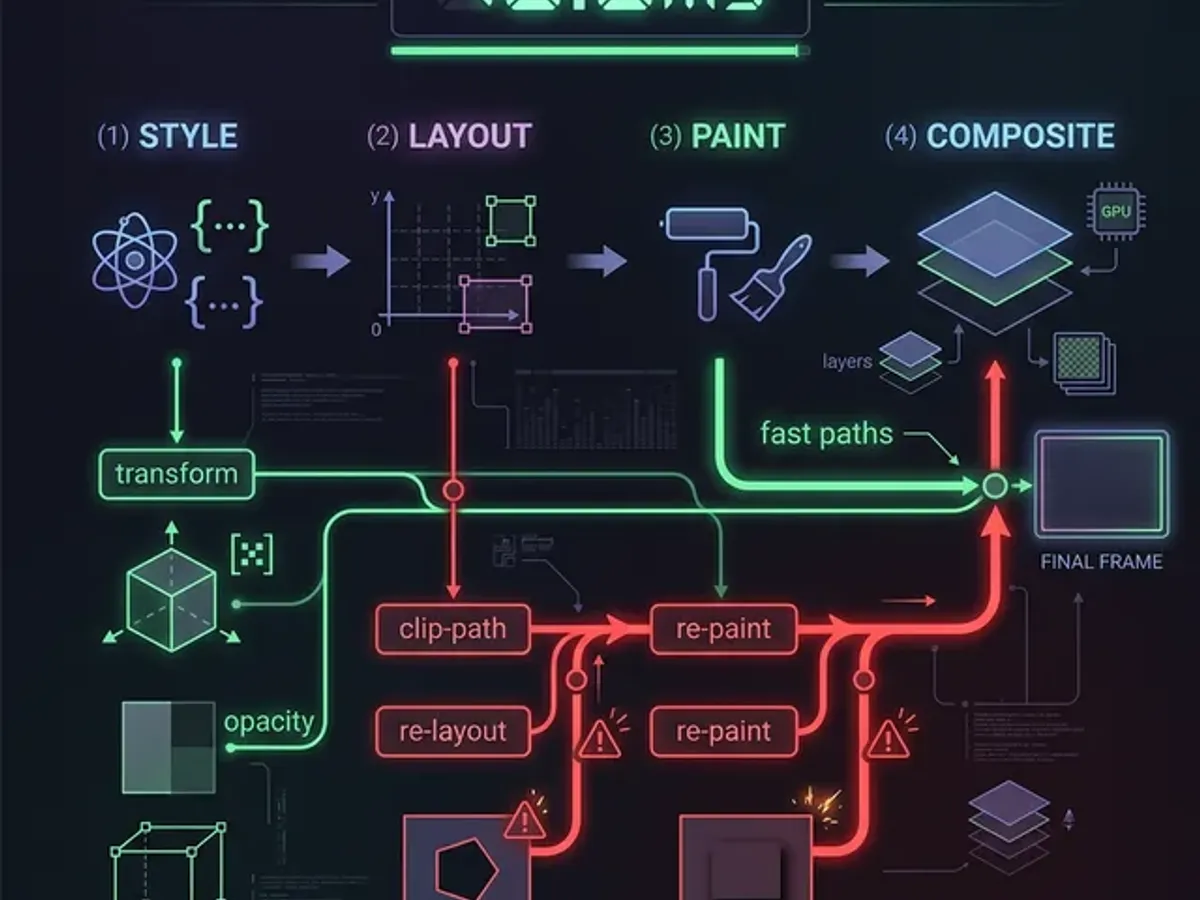
Every visual element on your page runs through a four-stage rendering pipeline — Style, Layout, Paint, Composite — and the performance cost of any CSS change is determined entirely by which stages it triggers. Understanding this pipeline is the prerequisite for any serious performance work.
The pipeline:
- Style — Browser computes which CSS rules apply to each element. Cascading rules, specificity, inheritance — all resolved here.
- Layout — Calculates position and size of every element. Changing any layout property forces all dependent elements to recalculate.
- Paint — Fills in pixels. Colors, text rendering, box shadows, images. Expensive on large areas or complex graphics.
- Composite — Assembles layers and coordinates with the GPU for display. When GPU-composited, this step costs nearly nothing on the main thread.
The critical insight: not all CSS properties trigger the same pipeline stages.
| CSS property | Triggers | Performance cost |
|---|---|---|
transform, opacity | Composite only | Nearly free — GPU-handled |
color, background-color | Paint + Composite | Moderate |
border, box-shadow | Paint + Composite | Moderate |
width, height | Layout + Paint + Composite | Expensive — recalculates geometry |
top, left, margin | Layout + Paint + Composite | Expensive — recalculates geometry |
drop-shadow() | Paint + Composite | Very expensive — multi-pass operation |
The takeaway: animate only transform and opacity. Everything else is paying avoidable pipeline costs on every frame.
GPU Compositing — The Performance Superpower
GPU compositing is the browser's mechanism for offloading animation work to the graphics card — making certain animations effectively free from a CPU perspective, capable of 60fps with minimal main-thread overhead regardless of what else is happening on the page. The GPU is literally designed for this. Using it correctly is the largest single performance gain available in animation-heavy sites.
How GPU layers work:
The browser promotes elements to their own GPU compositing layer when:
- The element has a
transformoropacityCSS animation - The element uses
will-change: transform(use sparingly — each layer uses VRAM) - The element is a
<video>or<canvas>element
Once an element has its own compositing layer, its animations run entirely on the GPU. The CPU doesn't recalculate layout or repaint — the GPU just repositions, scales, or changes the opacity of the pixels it already has. This is why transform: translateX(100px) is orders of magnitude cheaper than left: 100px for horizontal movement. Same visual position. Completely different pipeline cost.
The constraint: GPU layers use VRAM. will-change: transform on every element wastes graphics memory and can cause performance problems on low-VRAM devices — exactly the opposite of its intended effect. Use compositing layers for elements that genuinely animate, not as a blanket optimization.
Frame Budgets — The 16.6ms Constraint
At 60fps, each frame has exactly 16.6 milliseconds to complete all JavaScript execution, style calculation, layout, paint, and compositing. Exceed the budget on any frame and that frame drops — the user sees jank.
The budget breakdown:
Approximate budget per frame at 60fps: JavaScript ~5ms, style recalculation ~2ms, layout ~3ms, paint ~2ms, composite ~1ms. Remaining ~3ms: breathing room. Trigger layout, paint, and JavaScript in one frame — you've already lost. The budget doesn't flex; frames drop.
Layout thrashing is the fastest way to blow the budget: reading and writing DOM geometry in the same loop. Every element.offsetHeight read after a DOM write forces an immediate layout recalculation. In a loop, this compounds: one layout per iteration. For a list of 100 items, that's 100 forced layouts per frame — guaranteed jank.
The solution: batch reads, then batch writes. Read all geometry values first (the browser defers the layout), then make all DOM changes (one layout triggered at the end). The total cost: one layout instead of N.
// ❌ Layout thrashing — reads and writes interleaved
elements.forEach(el => {
  const height = el.offsetHeight;   // forces layout
  el.style.height = height + 10 + 'px';  // invalidates layout
});

// ✅ Batched — single layout
const heights = elements.map(el => el.offsetHeight);  // one layout read
elements.forEach((el, i) => el.style.height = heights[i] + 10 + 'px');  // one layout write
Why That Simple CSS Animation Is Destroying Your GPU
CSS animations that appear simple — a glowing box shadow, a smooth background color transition, a text blur on hover — can be significantly more expensive than complex animations that use only transform and opacity, because they trigger paint or layout on every frame.
Common cost misconceptions:
| Animation | Looks simple | Actually... |
|---|---|---|
box-shadow color transition | One property change | Triggers repaint of the entire element's paint area every frame |
filter: drop-shadow() | One property change | Multi-pass rendering — significantly more expensive than box-shadow |
border-radius changes | Subtle visual effect | Triggers layout on some elements; paint on all |
color transition | Minimal visual change | Triggers text repaint on every frame of the transition |
background-color gradient animation | Single property | Triggers repaint of the entire background area per frame |
transform: translateX() | Complex-looking movement | Composite only — GPU repositions pixels with no CPU involvement |
The counter-intuitive result: a complex 3D card flip animation using transform: rotateY() is faster than a "simple" glow effect using filter: drop-shadow(). The flip is composite-only. The glow triggers paint on every frame.
transform and opacity are the only CSS properties that run entirely on the GPU compositing stage. Animate anything else and you're paying layout or paint costs on every frame — regardless of how visually simple the change looks.
For the detailed breakdown of exactly which CSS properties trigger which pipeline stages — with benchmark data on drop-shadow vs. box-shadow, and why our card fleeing animation costs nothing despite its visual complexity — see Why That 'Simple' CSS Animation Is Killing Your GPU.
Core Web Vitals — What Actually Matters for Rankings
Core Web Vitals are Google's primary performance ranking signals — but they measure specific user experience moments, not overall performance, and optimizing for them requires understanding what they actually capture.
The current Core Web Vitals (2026):
| Metric | What it measures | Target | Common failure cause |
|---|---|---|---|
| LCP (Largest Contentful Paint) | How long before the largest visible content element renders | Under 2.5s | Unoptimized hero images, render-blocking resources |
| INP (Interaction to Next Paint) | Delay between user input and next visual response | Under 200ms | Long JavaScript tasks blocking the main thread |
| CLS (Cumulative Layout Shift) | Visual instability — elements jumping after initial render | Under 0.1 | Images without dimensions, dynamic content insertion |
LCP is most commonly hurt by images. The largest element on most web pages is a hero or card image. If that image isn't preloaded, isn't properly sized, and isn't in a modern format (WebP, AVIF), LCP suffers first.
INP replaced FID (First Input Delay) in 2024 — it's a harder metric because it measures all interactions, not just the first one. Long JavaScript tasks that block the main thread for more than 50ms break INP. Common culprits: synchronous third-party scripts, blocking analytics, and large JavaScript bundles that execute on the main thread.
CLS is solvable with three rules:
- Always declare
widthandheighton images and video elements - Don't inject content above existing content without a reserved slot
- Avoid CSS animations that affect layout
The number one cause of CLS is images without explicit dimensions. The browser can't reserve space for an image before it loads. When the image arrives, everything shifts. Fix: always include width and height attributes — even for responsive images.
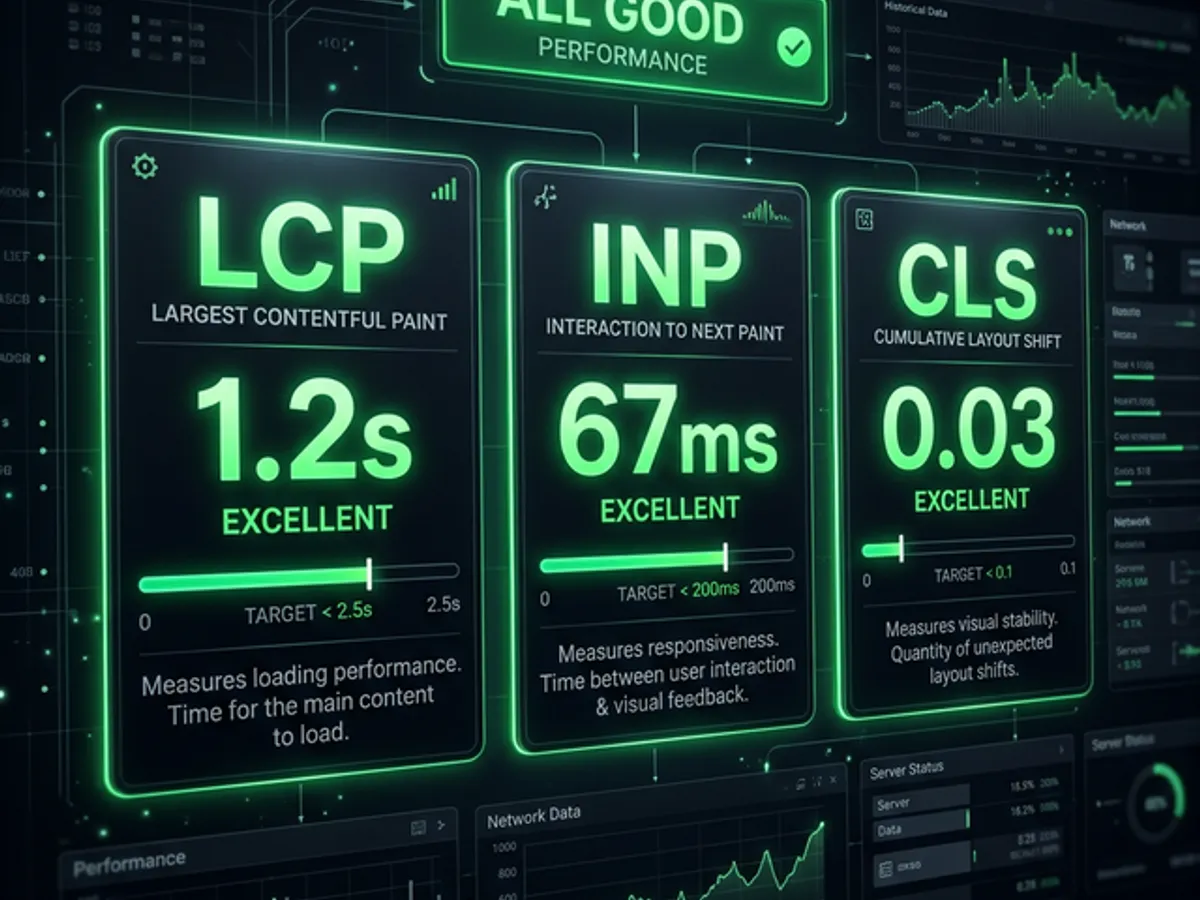
Image Performance — The Biggest Bang-Per-Effort Win
Image optimization is the single highest-return performance investment for content-heavy sites — because images are typically 60–80% of page weight, and a poorly optimized image adds more load time than almost any other single performance mistake.
The image optimization hierarchy:
| Optimization | Impact | Effort |
|---|---|---|
| Format: WebP or AVIF instead of PNG/JPEG | 25–50% size reduction, same quality | Low — convert once, done |
| Correct dimensions | Eliminates decode overhead from oversized images | Low — size at display size |
| Lazy loading | Defers off-screen images; reduces initial page weight | Low — add loading="lazy" |
| Responsive images | Serves appropriate size per device | Medium — requires srcset |
| Compression optimization | Reduces file size without visible quality loss | Low — tooling handles it |
| Critical image preloading | Tells browser to fetch LCP image immediately | Low — one <link rel="preload"> tag |
The budget we use on this site:
- Thumbnail/card images: ≤150KB, 1200×900px, WebP
- Inline article images: ≤200KB, ≤1200px wide, WebP
- Pillar card images: ≤150KB, WebP
- All images: explicit
widthandheightattributes, descriptivealttext
The preload pattern for LCP images:
<link rel="preload" fetchpriority="high" as="image" href="/images/hero.webp" type="image/webp">This single line can move LCP from "needs improvement" to "good" on content-heavy pages where the largest element is always a known hero image.
For most content sites, image optimization is the highest-ROI performance investment. Format conversion to WebP alone reduces transfer size by 25–50%. Correct dimensions eliminate decode overhead. Together they're often more impactful than all JavaScript optimizations combined.
What Lighthouse Gets Wrong
Lighthouse is an excellent tool for catching obvious loading performance problems. It's a poor tool for understanding actual user experience — because it runs a single simulated load in a controlled environment and misses everything that happens during extended real-world use.
What Lighthouse doesn't capture:
| Performance problem | Why Lighthouse misses it |
|---|---|
| Animation jank during scrolling | Only measures at page load; doesn't test interaction |
| Memory leaks from timers/listeners | Accumulate over session time; invisible in 10-second test |
| GPU memory pressure | Too many compositing layers; only visible under sustained use |
| INP from delayed interactions | Lighthouse measures FCP; real INP requires real interaction patterns |
| Perceived performance under real network | Lab conditions; real users have variable network and CPU |
| Third-party script impact over time | Some scripts degrade performance progressively |
The right testing workflow: interactive profiling, not just Lighthouse.
- Open DevTools → Performance tab
- Start recording
- Interact with the site normally for 60 seconds — scroll, click, navigate
- Stop recording
- Look for: red bars (frames over 16.6ms), purple blocks (layout thrashing), green storms (excessive paint)
This reveals what Lighthouse never shows: the long frame that happens every time a specific component re-renders, the memory that climbs 10MB per navigation, the paint storm that fires on every scroll event.
The Complete Performance Audit Workflow
A complete performance audit covers four areas: loading (Lighthouse + WebPageTest), rendering (DevTools Performance profiling), memory (DevTools Memory tab over a session), and image efficiency (Network tab + image format check). Most performance problems show up in one of these areas.
Run Lighthouse in Chrome DevTools on both desktop and mobile. Red flags: LCP over 2.5s, any CLS over 0, render-blocking resources. Check the "Opportunities" section first — these are the highest-impact fixes.
Record 30 seconds of normal interaction. Sort frames by duration. Identify what's running in the longest frames. Typical culprits: large JavaScript tasks, layout thrashing loops, paint storms from CSS transitions.
Take a heap snapshot on page load. Use the site for 5 minutes. Take another snapshot. Compare: is heap growing? Find what's accumulating. Common cause: event listeners not cleaned up, timer references keeping DOM nodes alive.
Filter by "Img" in the Network tab. Check: are any images over 200KB? Any PNGs that could be WebP? Any images served larger than their display size? Any missing lazy loading attributes on below-fold images?
Your development machine doesn't represent your users. Run the full audit on a mid-range Android phone with DevTools connected via USB. CPU throttle to 4× in desktop DevTools. These are the real performance floors.
The practical decisions this site made based on these audits:
| Decision | Audit finding | Performance outcome |
|---|---|---|
Card fleeing uses transform not top/left | Rendering: top/left animations triggered layout per frame | Transform is composite-only — no layout thrash |
All scroll listeners use { passive: true } | Rendering: blocking scroll listeners delay scroll events | Browser doesn't wait for handler to check preventDefault() |
| Rivalry timers clean up on unmount | Memory: orphaned intervals accumulated over navigation | Memory remains stable across multiple navigations |
| All images converted to WebP | Image audit: PNG thumbnails averaging 400KB | 65–75% size reduction, no visual loss |
| Hero images have explicit dimensions | Loading: CLS from undeclared image sizes | CLS: 0 across all pages |
Performance is the constraint that makes features better. Every millisecond recovered from the rendering pipeline is a millisecond the user experiences as smoothness. The site you're reading runs 17 animations and scores green on Core Web Vitals — not despite the constraints, but because of them.
Where to Go Next
Performance isn't a project you complete. It's a practice you maintain — each new feature audited, each new image optimized, each new animation tested against the frame budget.
Start with the rendering pipeline. It's the layer that most content sites ignore and where the gap between "technically fast" and "actually smooth" lives.
→ Why That 'Simple' CSS Animation Is Killing Your GPU — the full CSS rendering pipeline deep dive: which properties trigger which stages, benchmark comparisons of drop-shadow vs. box-shadow, and the architecture patterns that keep 17 animations running at 60fps.
Performance used to mean caching plugins and CDN configuration. Now it means understanding which CSS properties trigger which stages of the browser's rendering pipeline — and building everything else from that foundation.