Why That 'Simple' CSS Animation Is Killing Your GPU

CSS properties like drop-shadow, clip-path, and opacity on pseudo-elements look simple but require massive GPU compositing work. Without hardware acceleration, they fall back to CPU rendering at 60fps, causing visible lag. You can detect this at runtime using WebGL's renderer string to check for software renderers like SwiftShader.
The Innocent-Looking Animation That Broke Everything
CSS properties like drop-shadow, clip-path, and animated pseudo-elements look simple but can consume an entire CPU core at 60fps without GPU compositing. This post breaks down exactly why — and shows you how to detect GPU availability at runtime to gracefully degrade effects.
What is GPU compositing in CSS? GPU compositing is the browser's ability to hand off rendering of certain CSS layers — primarily those using
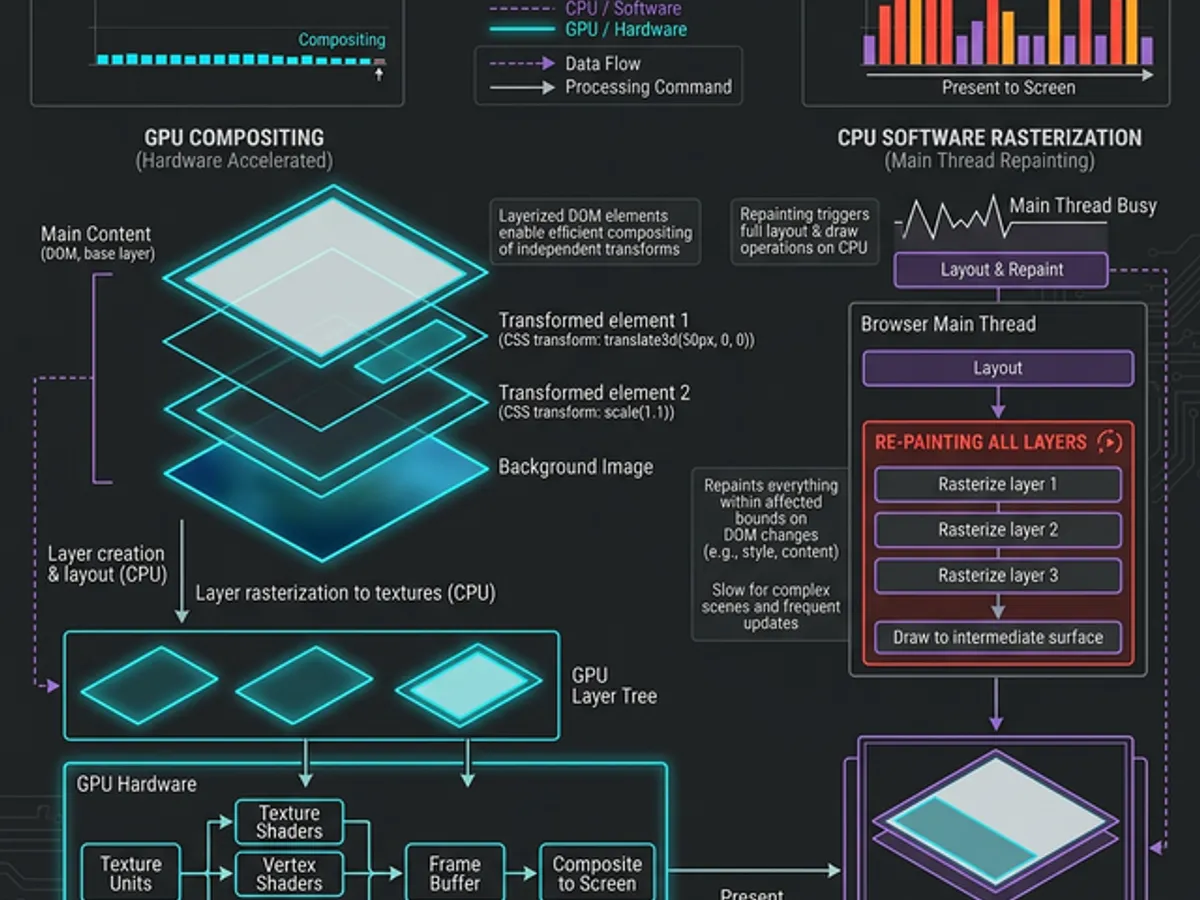
transformandopacity— to dedicated graphics hardware, where they are processed in parallel at hardware speed. Properties that are GPU-composited cost fractions of a millisecond per frame. Properties that aren't — likefilter: drop-shadow(),clip-path, andbox-shadow— fall back to software rasterization: single-threaded CPU math, pixel by pixel, 60 times per second. The difference between a 0.5ms frame time and a 14ms frame time on the same animation comes down entirely to whether the browser can GPU-composite it.
I recently built a glitch text effect for this site's hero section. The CSS looked deceptively simple — a few clip-path animations on pseudo-elements, some drop-shadow filters, done. It looked amazing on my machine.
Then I turned off hardware acceleration in Chrome.
The entire page turned into a slideshow. Scrolling felt like dragging through mud. The "simple" animation was consuming 100% of a CPU core trying to render at 60fps.
Here's the thing — this isn't a bug. It's a fundamental misunderstanding of how CSS rendering actually works under the hood.
Anatomy of a "Simple" Glitch Effect
A glitch text animation combines three expensive CSS operations: clip-path polygon recalculation, drop-shadow alpha-channel blur, and pseudo-element duplication — each running at 60fps. Together, they create a rendering pipeline that can exceed the 16.6ms frame budget on any device without dedicated GPU compositing.
Here's the actual CSS that caused the problem:
.glitch::before {
    content: attr(data-text);
    clip-path: inset(0 0 65% 0);
    animation: glitchTop 2.5s infinite;
    filter: drop-shadow(0 0 6px rgba(168, 85, 247, 0.3));
}

.glitch::after {
    clip-path: inset(65% 0 0 0);
    animation: glitchBottom 2.5s infinite;
    filter: drop-shadow(0 0 6px rgba(168, 85, 247, 0.3));
}

.glitch {
    animation: shimmer 8s ease-in-out infinite alternate;
}

@keyframes shimmer {
    0% {
        filter: drop-shadow(0 0 10px rgba(168, 85, 247, 0.6))
               drop-shadow(0 0 40px rgba(168, 85, 247, 0.3))
               drop-shadow(0 0 80px rgba(168, 85, 247, 0.1));
    }
    100% {
        filter: drop-shadow(0 0 15px rgba(99, 102, 241, 0.5))
               drop-shadow(0 0 50px rgba(99, 102, 241, 0.25))
               drop-shadow(0 0 100px rgba(99, 102, 241, 0.08));
    }
}
Looks clean, right? Three animations, a few shadows. What could go wrong?
Why It's Actually Expensive
Animating clip-path forces full geometry recalculation per frame, drop-shadow requires per-frame Gaussian blur across the element's alpha channel, and pseudo-elements triple the rendering workload. Without GPU compositing, these operations fall back to single-threaded CPU software rasterization, consuming ~14ms of a 16.6ms frame budget.
This "simple" CSS triggers 3 simultaneous infinite animations, each forcing the browser to recalculate geometry, repaint pixels, and composite layers — 60 times per second, forever.
Let's break down what the browser actually does for each frame:
1. clip-path Changes → Full Geometry Recalculation
When you animate clip-path, the browser can't just move pixels around. It must:
- Recalculate the clipping region polygon
- Determine which pixels are inside vs outside
- Repaint the entire element within the new clip bounds
With GPU compositing, this happens on dedicated graphics hardware in microseconds. Without it? Pure CPU math, pixel by pixel.
2. drop-shadow() Filter → The Real Killer
This is the big one. Unlike box-shadow (which is a simple rectangle blur), drop-shadow traces the alpha channel of the element — meaning it follows the exact shape of your text, including every curve and serif.
For each frame:
  1. Render the text to a bitmap
  2. Extract the alpha channel (transparency map)
  3. Apply a Gaussian blur to the alpha channel
  4. Multiply by the shadow color
  5. Composite behind the original

  × 3 shadows (stacked in the shimmer animation)
  × 60 frames per second
  = 180 blur operations per second
3. Pseudo-Elements (::before + ::after) → Triple Rendering
The text isn't rendered once — it's rendered three times:
- The original
.glitchelement (with shimmer filter) ::before(with its own clip-path + filter)::after(with its own clip-path + filter)
Each copy has its own animation timeline, its own filter pipeline, and its own compositing pass.
With GPU compositing, each of these layers gets promoted to its own compositor layer — a texture that lives in VRAM and gets transformed by the GPU's parallel processing cores. Without it, every operation falls back to the browser's software rasterizer, which runs on a single CPU thread.
The Total Cost Per Frame
On a machine without hardware-accelerated GPU compositing, the combined per-frame rendering cost of this animation reaches approximately 14ms — consuming 84% of the 16.6ms budget at 60fps and leaving almost nothing for layout, JavaScript, scrolling, or other page elements.
| Operation | With GPU | Without GPU |
|---|---|---|
| Clip-path recalc (×2) | ~0.1ms | ~2ms |
| Drop-shadow blur (×3 shadows × 3 elements) | ~0.2ms | ~8ms |
| Layer compositing | ~0.1ms | ~3ms |
| Opacity interpolation | ~0.05ms | ~1ms |
| Total per frame | ~0.5ms | ~14ms |
| Budget at 60fps | 16.6ms ✅ | 16.6ms ⚠️ |
Without GPU, we're using 84% of our frame budget on just the text animation — leaving almost nothing for layout, JavaScript, scrolling, or anything else on the page. And that's an optimistic estimate.
This analysis only covers the glitch text. If your page also has animated particles, gradient backgrounds, and mouse-tracking overlays, those frame times stack. It's death by a thousand CSS cuts.
Detecting GPU Availability at Runtime
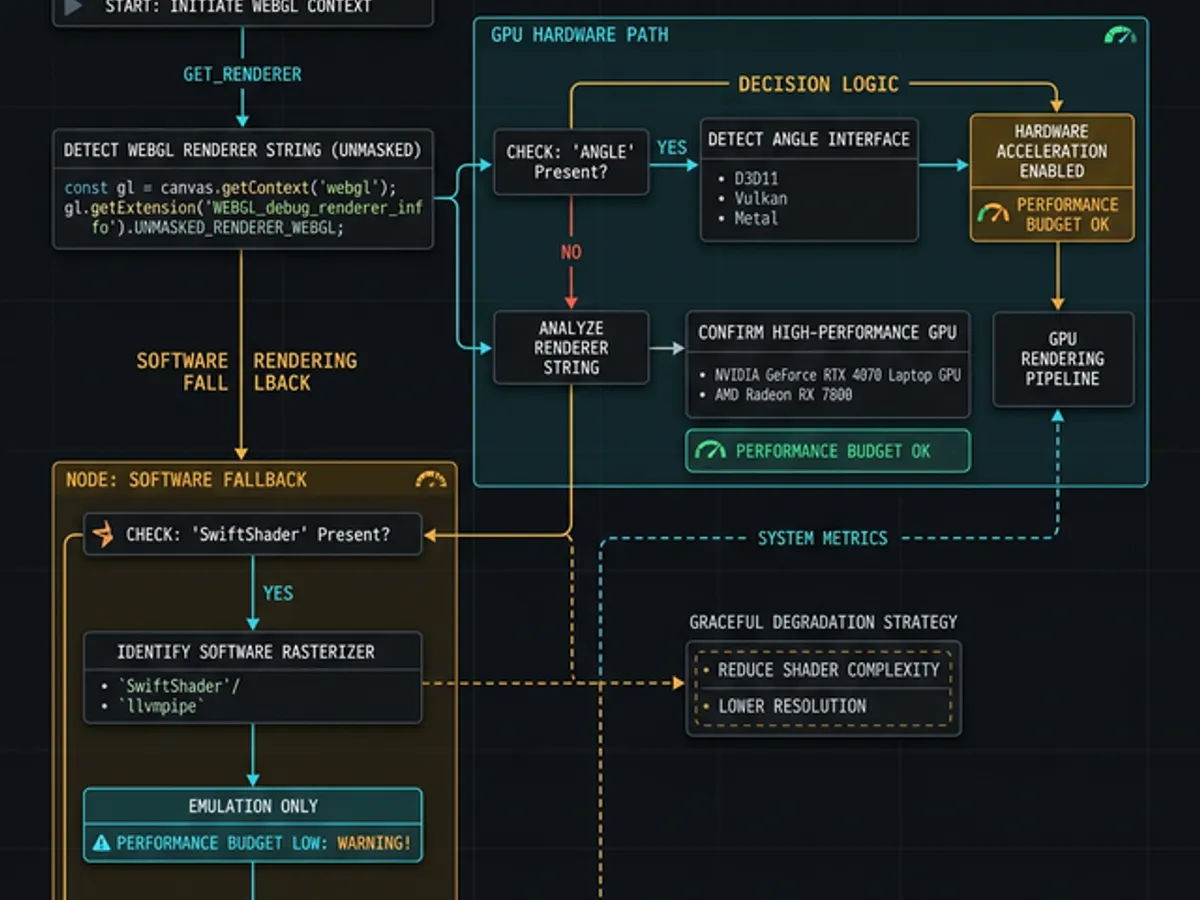
You can detect whether a browser has hardware GPU acceleration by checking the WebGL renderer string. When Chrome's hardware acceleration is disabled, it falls back to SwiftShader (a software GPU emulator), which is identifiable via the UNMASKED_RENDERER_WEBGL parameter.
So how do you fix this without removing the animation entirely? Detect whether the browser has hardware acceleration and gracefully degrade.
Here's the approach I use:
function detectGPU() {
    try {
        const canvas = document.createElement("canvas");
        const gl = canvas.getContext("webgl2")
                || canvas.getContext("webgl");

        if (!gl) return false; // No WebGL = no GPU

        const ext = gl.getExtension("WEBGL_debug_renderer_info");
        if (ext) {
            const renderer = gl.getParameter(
                ext.UNMASKED_RENDERER_WEBGL
            );
            // Chrome uses SwiftShader when hardware accel is off
            const softwareRenderers = [
                "swiftshader",
                "llvmpipe",
                "software",
                "microsoft basic render"
            ];
            return !softwareRenderers.some(sw =>
                renderer.toLowerCase().includes(sw)
            );
        }

        return true; // WebGL works, assume hardware
    } catch {
        return false;
    }
}
How It Works
When you disable hardware acceleration in Chrome, it doesn't just turn off GPU compositing — it switches the entire WebGL backend to SwiftShader, a software-based GPU emulator. By checking the WebGL renderer string, we can detect this reliably.
You might think "just measure frame rate and degrade if it's slow." The problem? Frame rate probes run during page hydration, when everything is slow — even on a beefy GPU. The WebGL renderer string is instant and deterministic. No false positives.
The Graceful Degradation Strategy
Graceful degradation means serving a visually similar but performance-safe fallback — like a static text-shadow instead of an animated drop-shadow — when GPU compositing isn't available. This preserves the visual identity of the design while eliminating per-frame rendering costs entirely. If you're building a site that uses workspace-aware AI tools, detecting and fixing these performance issues becomes dramatically faster.
Once you know the GPU state, conditionally render your effects:
function HeroSection() {
    const hasGPU = useGPUAvailable() !== false;

    return (
        <section>
            {hasGPU ? (
                <GlitchText text="Welcome" />
            ) : (
                <h1 className="clean-title">Welcome</h1>
            )}
        </section>
    );
}
The fallback title uses a static text-shadow instead of animated drop-shadow — same vibe, zero per-frame cost:
.clean-title {
    font-size: clamp(2.5rem, 7vw, 5rem);
    font-weight: 900;
    text-shadow:
        0 0 30px rgba(168, 85, 247, 0.4),
        0 0 60px rgba(168, 85, 247, 0.15);
}The Performance-Safe CSS Cheat Sheet
The only CSS properties guaranteed to be GPU-composited across all browsers are transform and opacity. Everything else — including filter, clip-path, and box-shadow — either triggers repaint or requires GPU hardware to perform well. This understanding is foundational for any AI-assisted workflow that helps diagnose rendering bottlenecks.
Not all CSS properties are created equal. Here's a quick reference:
| Property | GPU-Composited? | Safe to Animate? |
|---|---|---|
transform | ✅ | ✅ Always |
opacity | ✅ | ✅ Always |
filter: blur() | ✅ | ⚠️ GPU only |
filter: drop-shadow() | ✅ | ⚠️ GPU only |
clip-path | ❌ | ⚠️ Triggers repaint |
background-image | ❌ | ❌ Triggers repaint |
box-shadow | ❌ | ❌ Triggers repaint |
width / height | ❌ | ❌ Triggers reflow |
If you want animations that work everywhere, stick to transform and opacity. Everything else is playing with fire on low-end devices.
drop-shadow + clip-path + pseudo-elements is a performance trap that looks innocent in DevTools until you load the page without GPU hardware.
Users disable hardware acceleration. Mobile devices have weak GPUs. Your M3 MacBook is not your users' hardware profile.
Use the WebGL renderer string (UNMASKED_RENDERER_WEBGL) to check for software fallbacks like SwiftShader. It's instant and deterministic — no false positives.
A static text-shadow looks 90% as good as an animated drop-shadow with 0% of the per-frame cost. Serve the right effect for the device.
They're the only properties guaranteed to be GPU-composited across all browsers. Everything else is a risk on low-end devices.
Your users aren't running your M3 MacBook. They're on
a fast machine with hardware acceleration— they're on their work laptop with GPU disabled by the IT department.
The beauty of web development is that you can make anything look amazing. The art is making it look amazing for everyone — not just the users with the latest hardware. transform and opacity are your baseline guarantee. Everything beyond that is a risk you're choosing to take on behalf of your users.
Detect. Don't assume. Degrade gracefully. The users who'd never notice the full animation will never miss it. The ones who'd have experienced a slideshow will stay.
→ The Architecture of a Blog That Feels Alive — how this site runs 8 interactive systems simultaneously while staying under a 15KB JS budget and maintaining 95+ Lighthouse scores.
This post is part of our Web Performance Deep Dive — the full guide to what actually makes a site fast.